Need help with SporkMP3 or have a suggestion? Join the discord server!
Configurable!
Free to use!
Easy to use!
Why SporkMP3?
I built SporkMP3 because I couldn't find a free Discord bot that did what I needed. I wanted something simple — a way for musicians to share works-in-progress with collaborators, for creators to preview tracks with their community, for friend groups to save and replay funny audio clips, or for anyone who just wants to listen to podcasts and audiobooks together. So I made one.
What Makes It Different
SporkMP3 plays your audio files at their original quality — no compression, no downgrading. Skip forward and backward through tracks, jump to any timestamp, and control playback speed. Save your favorite sounds to a permanent server library so they're always one command away. Configure autoplay, auto-disconnect, and role-based permissions to fit how your server actually works.
Quick Start
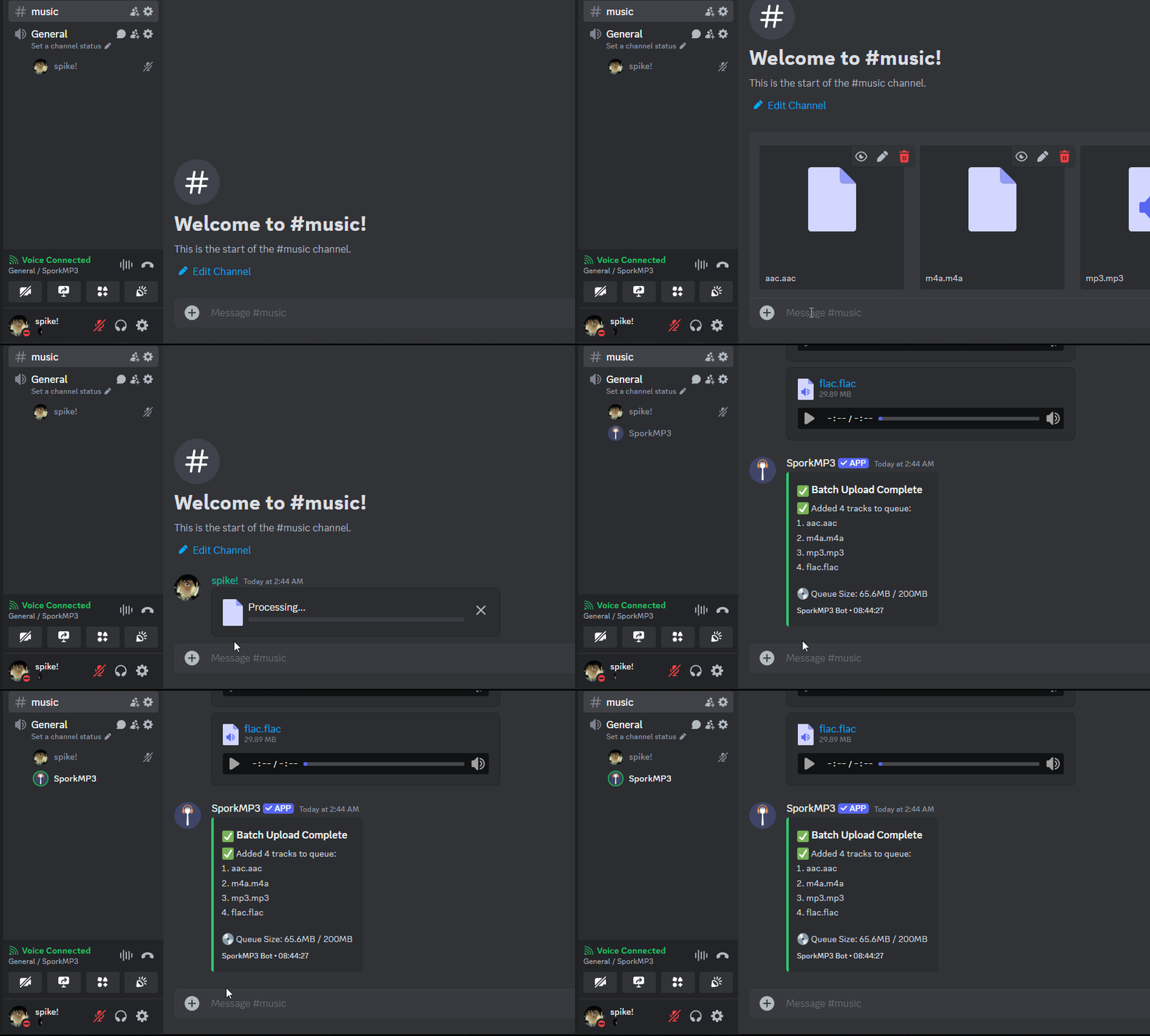
Invite SporkMP3 to your server
Join a voice channel
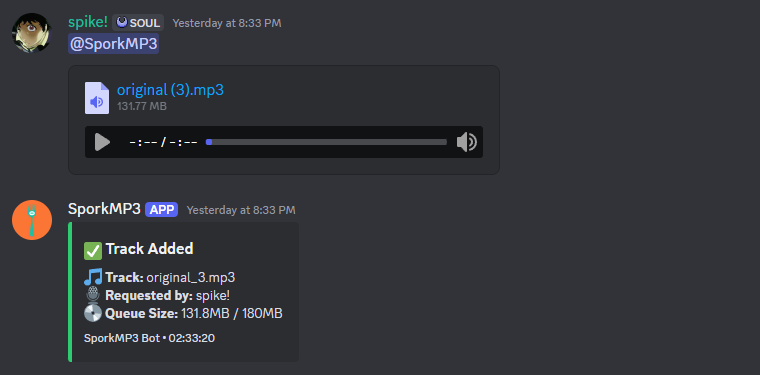
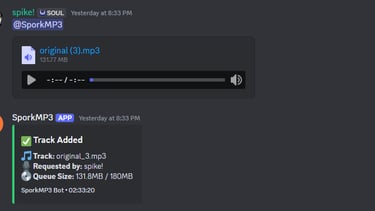
Mention the bot with attached audio files
Playback starts automatically
How to use Spork Mp3
Playback
/play — Start playback or add a library sound
/pause — Pause the current track
/resume — Resume playback
/stop — Stop without clearing queue
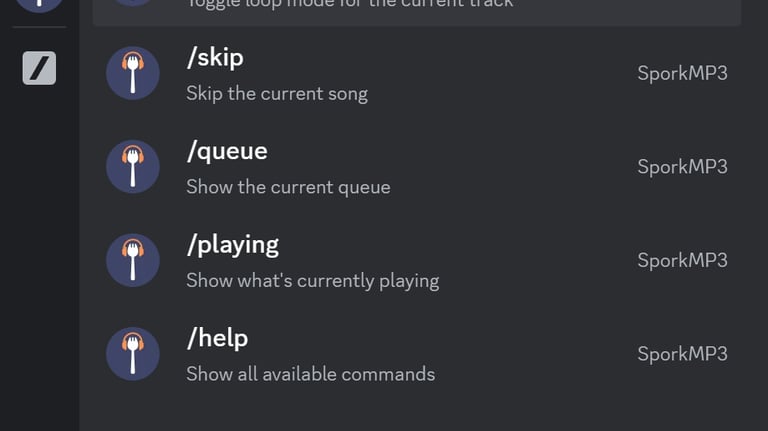
/skip — Skip to next track
/previous — Go back one track
/volume 0-120 — Adjust volume
/speed 50-200 — Change playback speed
Track Navigation
/forward <seconds> — Skip forward
/backward <seconds> — Skip backward
/seek <h> <m> <s> — Jump to exact position
/loop [times] — Loop current track
Queue
/queue — View all queued tracks
/playing — Show current track with progress
/seekqueue <position> — Jump to a specific track
/remove <position> — Remove a track
/clear — Clear entire queue
/disconnect — Leave voice and clear queue
Sound Library
Save sounds permanently to your server — they stay even after the bot restarts.
/upload <name> — Save a sound to the library
/library — View all saved sounds
/play <name> — Play a saved sound
/remove_sound <name> — Delete from library
Server Settings (Admin)
/autoplay true/false — Auto-play when files are added
/autodisconnect true/false — Leave when queue ends
/blacklist add/remove <user> — Block a user
/role_config add/remove <role> — Restrict bot to specific roles
/health — View bot status
FAQ & Troubleshooting
The bot isn't responding to my commands
Make sure you're using slash commands (start typing / to see them). If commands don't appear, try kicking and re-inviting the bot — this re-syncs the command list with your server.
The bot won't join my voice channel
You need to be in a voice channel first. The bot also needs "Connect" and "Speak" permissions for that channel. Check your server's role settings.
My file won't upload
SporkMP3 supports MP3, WAV, OGG, FLAC, M4A, AAC, MP4, and WEBM. Make sure your file is one of these formats. There's also a queue size limit — if your queue is full, remove some tracks or use /clear.
The audio sounds choppy or keeps cutting out
This is usually a network issue on the server hosting the bot or Discord's voice servers. Try disconnecting and reconnecting. If it persists, it may be temporary Discord infrastructure issues.
The bot disconnected randomly
If auto-disconnect is enabled, the bot leaves when the queue ends. It also disconnects after being alone in a voice channel for 5 minutes, or after 3 hours of inactivity. Use /autodisconnect false to disable the empty-queue behavior.
How do I save a sound permanently?
Use /upload <name> with a file attached. The sound is saved to your server's library and can be played anytime with /play <name>.
Is there a storage limit for the library?
Yes, each server has 100MB of library storage by default. Use /library to see your current usage.
Can I restrict who uses the bot?
Yes. Use /role_config add <role> to whitelist specific roles — only users with those roles can use the bot. Use /blacklist add <user> to block individual users. Admins always have full access.
The bot says I'm blacklisted but I shouldn't be
Ask a server admin to run /blacklist remove <you> to remove you from the blacklist.
Terms of Service
Last updated: January 2026
By using SporkMP3, you agree to these terms. If you don't agree, don't use the bot.
What SporkMP3 Is
SporkMP3 is a free Discord bot that plays audio files in voice channels. It's provided as-is, with no guarantees of uptime, availability, or performance.
Your Responsibilities
You must follow Discord's Terms of Service and Community Guidelines
You must have the right to share any audio files you upload
You must not use the bot to distribute copyrighted material you don't own or have permission to share
You must not attempt to abuse, exploit, or overload the bot
What We Can Do
Remove or restrict access to the bot for any server or user at any time, for any reason
Modify, update, or discontinue features without notice
Set limits on storage, queue sizes, or usage
Limitation of Liability
SporkMP3 is provided "as-is" without warranties of any kind. We're not responsible for:
Audio files you upload or share
Lost data, including saved library files
Service interruptions or downtime
Any damages resulting from your use of the bot
Changes to These Terms
We may update these terms at any time. Continued use of the bot means you accept the updated terms.
Privacy Policy
Last updated: January 2025
This policy explains what data SporkMP3 collects and how it's used.
What We Collect
Server Data
Server ID
Channel IDs where commands are used
Role IDs added to the whitelist
Server settings (autoplay, auto-disconnect, playback speed)
User Data
User IDs of blacklisted users
Display names of users who upload files (shown as "Requested by")
Audio Files
Temporary files: Deleted automatically after playback or inactivity
Library files: Stored permanently until manually deleted by a server admin
What We Don't Collect
Message content (except bot mentions for file uploads)
Voice data or recordings
Personal information beyond Discord user/server IDs
Analytics or tracking data
How Data Is Used
Server settings: To remember your preferences
User IDs: To enforce blacklists and display who requested tracks
Audio files: To play them back in voice channels
Where Data Is Stored
All data is stored locally on the server hosting the bot. Nothing is shared with third parties.
Data Retention
Server settings: Kept until the bot is removed from your server
Temporary audio files: Deleted after inactivity (typically within hours)
Library files: Kept until a server admin deletes them
Your Rights
Server admins can delete library files with /remove_sound
Server admins can remove users from blacklists with /blacklist remove
Removing the bot from your server stops all data collection for that server
© 2024. All rights reserved.